

Knowing how to combine two PDFs into one is a fundamental digital skill, whether you are organizing medical records, submitting a business proposal, or compiling a portfolio. In 2026, document management has evolved beyond simple stitching; it now involves AI-driven optimization and enhanced cloud security. This guide provides the most efficient, secure, and professional methods to merge your documents instantly.
Why File Organization Matters in 2026
We handle more digital data than ever. Keeping related information in a single file reduces “digital friction,” ensures your recipients see documents in the correct order, and makes your archives searchable.
Best Ways to Merge Multiple PDF Files on Mac
For Apple users, the ecosystem provides powerful built-in tools that eliminate the need for third-party software. If you need to know how to merge multiple PDF files on Mac, your best friend is the Preview app.
Using Preview for Instant Merging
- Open the first PDF in Preview.
- Go to View > Thumbnails to show the page sidebar.
- Drag the second PDF file directly into the thumbnail sidebar of the first.
- Rearrange the pages as needed.
- Go to File > Export as PDF to save your new document.
Quick Actions via Finder
If you are looking for how to merge 2 PDF files Mac users can do in under five seconds, use the Finder:
- Highlight both files in your folder.
- Right-click and select Quick Actions.
- Click Create PDF.
This creates a combined file automatically without even opening an app, making it the fastest way to how to merge two PDF files into one on Mac.
How to Combine Two PDFs into One on Windows and Web
Windows 11 and 12 don’t have a native “merge” button in File Explorer yet, but the 2026 landscape offers several robust alternatives.
Professional Grade: Adobe Acrobat
Adobe remains the industry standard for document integrity.
- Pros: Preserves high-resolution images and interactive form fields.
- Cons: Requires a subscription for advanced features.
Browser-Based Tools
Modern browsers like Edge and Chrome now support “Drag and Drop” merging via integrated extensions. Tools like infohyper or ILovePDF have also updated their 2026 protocols to include end-to-end encryption, ensuring your data isn’t stored on their servers after the merge.
Here is a sample image of our Merge pdf tool
Click here Merge pdf file instantly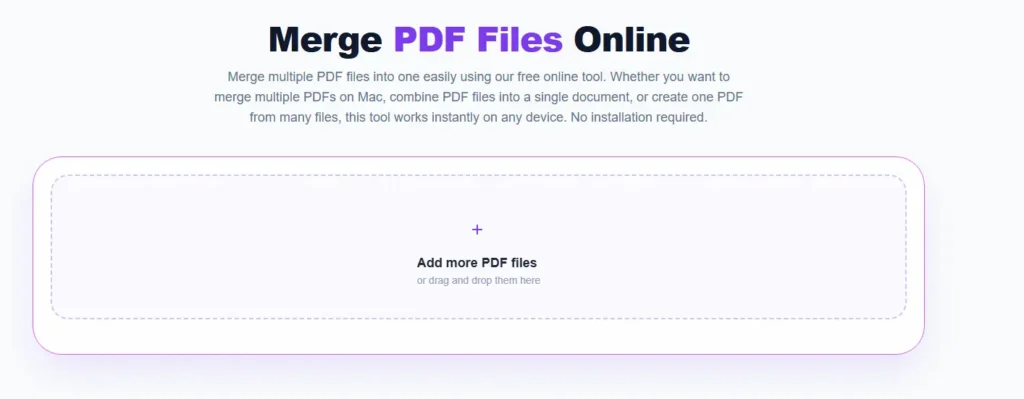
Key Insights: Pros and Cons of Different Methods
| Method | Best For | Pros | Cons |
| Native Mac (Preview) | Individual users | Free, fast, offline | Limited to macOS |
| Adobe Acrobat | Legal/Corporate | Secure, preserves metadata | Monthly cost |
| Online Converters | One-time use | No installation needed | Requires internet |
| Mobile Apps | On-the-go | Convenient | Harder to organize large files |
Expert Tips for a Professional Merge
When you how to combine two PDFs into one, simply sticking them together isn’t enough. Follow these expert standards:
- Check Page Logic: Ensure page numbers are sequential. If Document A ends at page 5, Document B should ideally be labeled starting at page 6.
- Optimize File Size: Large PDFs are hard to email. Use a “Linearize” or “Compress” feature after merging to ensure fast web viewing.
- Verify Security: Never upload sensitive legal or financial documents to “free” online tools unless they explicitly state they use SOC2 compliance or zero-retention policies.
- OCR Awareness: If your PDFs are scans of physical paper, ensure you run Optical Character Recognition (OCR) so the text remains searchable after the merge.
Real-World Example: The Freelance Portfolio
Imagine you are a graphic designer. You have a “Resume.pdf” and a “WorkSamples.pdf.” Sending them as two attachments looks cluttered. By knowing how to merge 2 PDF files Mac users frequently do, you can create a single “Professional_Identity.pdf.” This ensures the recruiter sees your resume first, immediately followed by your best work, controlled in a single scroll.
Summary: Mastering Your Documents
Learning how to combine two PDFs into one is about more than just merging pages; it’s about presenting a cohesive, professional narrative. Whether you use the native Finder tools to how to merge multiple PDF files on Mac or use a cloud-based suite on Windows, the goal is clarity and accessibility.
Expert Note: In 2026, always prioritize tools that offer “Lossless Merging.” This ensures that fonts and vector graphics don’t become pixelated during the combination process.
FAQ
1. Does merging PDFs reduce the quality of the images?
Not if you use professional tools. Standard PDF merging simply links existing data objects and does not re-encode images. However, some “lite” or free online tools may compress files to save space, which can reduce image resolution and overall quality.
2. How do I merge two PDF files into one on Mac without buying software?
You can use the built-in Preview app or Quick Actions in Finder. Both methods are free, come pre-installed on macOS, and work on all versions, including the latest 2026 updates.
3. Is it safe to merge sensitive documents online?
Only if you use reputable services with HTTPS encryption and a clear privacy policy stating that uploaded files are deleted (for example, within an hour). For highly sensitive documents, it’s safest to use offline tools like Preview or Adobe Acrobat.
4. Can I merge a PDF with a Word document?
Not directly. You must first export or save the Word document as a PDF. Once both files are PDFs, you can merge them using any standard PDF-combining method.
5. Why is my combined PDF file size so large?
This usually happens when the original files contain high-resolution images or uncompressed data. After merging, use a PDF optimizer or compression tool to reduce the file size, especially if you need to email it.


